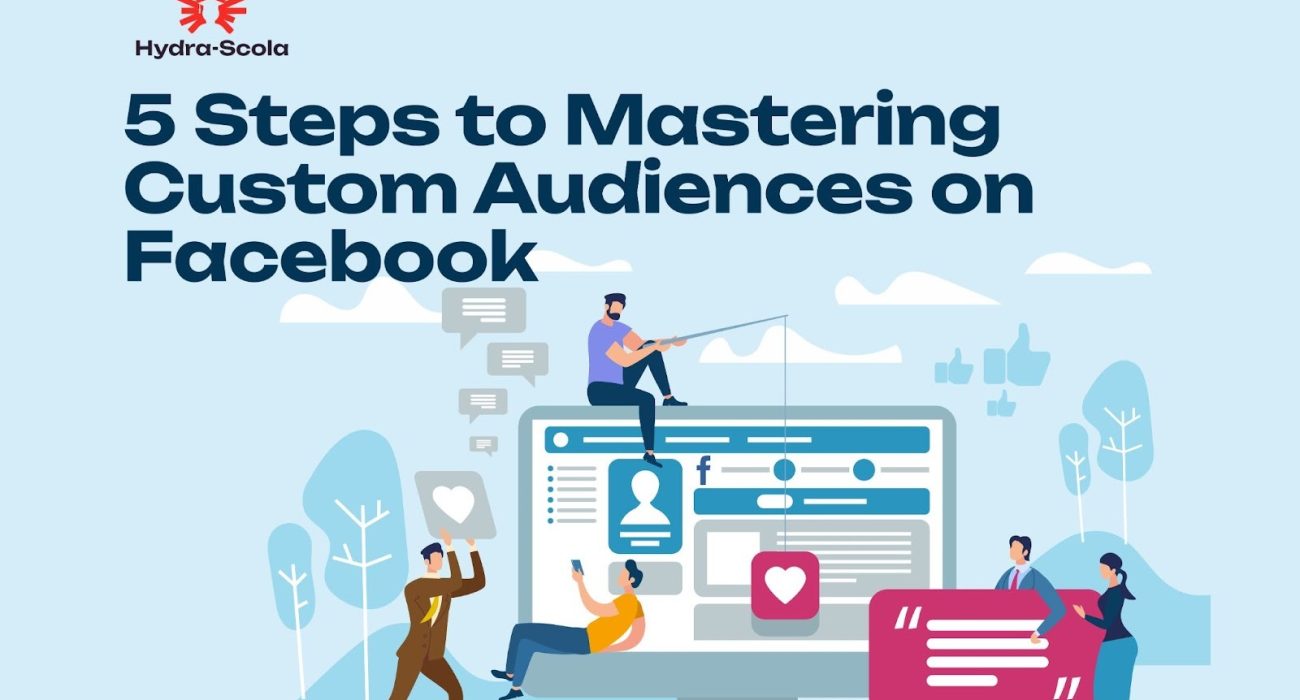
Facebook ads are great for getting you leads and conversions, but if you’re not targeting the right audience, then your money is simply going down the drain.
That’s where custom audiences (insert link to “What are custom audiences and How to use them in Facebook ads”) come in.
Custom audiences let you focus your ad spend on users who already know your brand, which increases your conversion chances.
Whether you’re new to Facebook advertising or looking to sharpen your strategy, this guide will take you through five essential steps to mastering custom audiences for better return on ad spend.
Step 1: Understand What Facebook Custom Audiences Are
First things first, let’s get the basics straight and understand what custom audiences are.
Facebook Custom Audiences are a specific group of people who have interacted with your business in the past.
With custom audiences, you know exactly who is seeing your ads, and this makes it easier to create more targeted messages that increase conversion rates (insert link to article on “What is Conversion Rate and How to Calculate it”).
Types of Custom Audiences
Now, let’s look at the different types of custom audiences available on Facebook.
- Customer List Custom Audiences
- Website Visitors Custom Audiences
- App Users Custom Audience
- Engagement-Based Custom Audiences
Customer List Custom Audiences
This comprises your existing customers who are not from Facebook engagement or Meta Pixel. Instead, they are from email lists, phone numbers, or other customer data.
Facebook allows you to target your ads to this group by uploading a file containing their information (like email addresses or phone numbers) and matching it with Meta’s user profiles.
Note: You can use your custom audience to create lookalike audiences (insert link to “Facebook Lookalike audiences: what are they and how to use them”), which are groups of people who share similar characteristics with your existing customers; which means they have a higher likelihood of converting even though they are total strangers to your brand.
How to Create a Customer List Custom Audience
Here’s how you can create a customer list custom audience:
- Gather Your Customer Data: Collect customer information (email addresses, phone numbers, etc.) from your website, CRM system (like Mailchimp, ActiveCampaign, Birdsend, etc), or other sources.
- Prepare Your List: This can be done in two steps:
- Format: Ensure your customer data is in a specific format (CSV or TXT) with proper identifiers.
- Identifiers: Include as many identifiers as possible to improve the match rate (e.g., email, phone number, first name, last name). Working with just email addresses and phone numbers typically works just fine.
- Upload to Meta: Here’s how you can do that:
- In Meta Ads Manager, navigate to the Audiences section.
- Click “Create Audience” and select “Custom Audience” and then “Customer List”.
- Upload the CSV or TXT file containing your customer data. Or you can just copy and paste the content of the spreadsheet (CSV) or the text file (TXT) directly.
- Map the columns in your file to the corresponding identifiers (e.g., email, phone number).
- Give your custom audience a name.
- Matching Process: After doing this, Meta will hash (encrypt) your customer data and match it with its user profiles.
- Target Your Ads: Once the audience is created, you can target your ads to this specific group of people. Or exclude them from seeing your ads.
Website Visitors Custom Audiences
These are people who have visited your website (which has the Facebook [Meta] Pixel integrated on it). To create a website visitors custom audience, you need to use the Facebook (Meta) Ads Manager.
How to Create a Website Visitors Custom Audience
- In Facebook Ads Manager, go to “Audiences”, click on “Create Audience” and then select “Custom Audience”. Click on “Website” under “Your sources” to indicate you want to create a custom audience based on website activity.
- Define the criteria for your audience, such as:
- Target all website visitors: Include everyone who has visited your website.
- Target people who’ve visited specific pages: Specify URLs or pages to target visitors who accessed them.
- Target visitors by time spent on your website: Set rules based on how long visitors stayed on your website.
- Target based on events: You can create audiences based on specific events tracked on your website, like purchases or page views.
- Name and Describe Your Audience: Give your audience a descriptive name and optionally add a description for better organisation and clarity.
- Create the Audience: Once you’ve set the rules and named your audience, click “Create audience” to finalise the custom audience.
You can then use this custom audience in your ad campaigns to reach the specific group of website visitors you’ve defined.
App Users Custom Audience
These are users who have interacted with your mobile app.
To create an App Users Custom Audience, you also make use of the Meta (Facebook) Ads Manager to target users who have engaged with your app based on specific actions or events within the app.
How to Create an App Users Custom Audience
On Meta (Facebook) Ads Manager:
- Go to Meta Ads Manager.
- On the primary dashboard, navigate to “Audiences” and select “Create New,” then “Custom Audience.”
- Choose “App activity” as the source for your custom audience.
- Select the app and specific app events (e.g., app installs, in-app purchases, level achievements) to define your audience.
- Decide whether to include or exclude users who have taken specific actions.
For example, you could create an audience of users who have opened your app or achieved a specific level, but exclude those who have made an in-app purchase.
- Name and describe your audience. (Optional) Save it, and you’re done.
Engagement-Based Custom Audiences
This targets people who have interacted with your brand across Meta Platforms. It could be your Facebook page or Instagram account or watched your videos or even filled your Facebook lead form.
They are created based on specific actions users have taken, such as viewing videos, following a Facebook Page, or opening a form in a lead generation ad.
Engagement custom audiences are a powerful tool for reaching people who are already interested in your business and are likely to be more responsive to your ads.
There are different types of engagement custom audiences, including:
- Page Engagement: Targets people who have engaged with your Facebook/Instagram Page.
- Video Engagement: Targets people who have viewed your videos.
- Events Engagement: Targets people who have engaged with your events.
- Shopping Engagement: Targets people who have interacted with your shop
How to Create Engagement-Based Custom Audiences
- Go to Audiences in your Meta (Facebook) Ads Manager. Or in your Meta (Facebook) Business Manager
- Click “Create Audience” and select “Custom Audience”.
- Choose the type of engagement, such as Facebook Page, Instagram Page, Video, or Events.
- Select the relevant Page, video, or event.
- Choose the type of engagement to include in the audience (e.g., people who viewed a video, people who visited a page).
- Set the retention period (The period to look back on and gather the data).
- Name, describe and create the audience.
And with that, we’re done with the basics. While that was pretty long, one thing to take home is this:
Custom Audiences ensure that your ads reach people who are already interested in your brand, improving conversion rates and lowering costs.
Now, let’s move on to step two of mastering custom audiences on Facebook
Step 2: Set Up Facebook (Meta) Pixel for Retargeting
To make the most of Custom Audiences, you need the Facebook (Meta) Pixel.
This is a tiny but mighty tracking code that collects data from your website visitors.
How to Set Up Facebook Pixel
- Go to Meta Business Suite or the Meta Ads Manager and navigate to Events Manager.
- Click on Connect Data Sources and select Web.
- Choose Facebook (Meta) Pixel, name it, and enter your website URL.
- Install the Pixel manually or via a partner integration like WordPress, Shopify, or Google Tag Manager.
- Test the Pixel using the Test Events tool to ensure it’s working correctly.
Once installed, Facebook will track visitor actions like page views, purchases, and sign-ups, allowing you to create high-intent Custom Audiences.
Step 3: Create and Segment Your Custom Audiences
Now that you understand Custom Audiences and have your Pixel set up, it’s time to create audience segments.
How to Create a Custom Audience
- Go to Ads Manager and navigate to Audiences.
- Click on Create Audience → Custom Audience.
- Choose a source (e.g., website traffic, customer list, app activity, or engagement).
- Define your audience conditions if applicable (e.g., visited a specific page in the last 30 days).
- Name, describe and save your audience for future campaigns.
Best Practices for Segmenting
- Recent Website Visitors: Target users who visited your website in the last 7-30 days.
- Cart Abandoners: Retarget people who added products to their cart but didn’t check out.
- High-Value Customers: Create an audience of customers who have made multiple purchases.
- Engaged Social Users: Retarget people who have liked, shared, or commented on your posts.
Segmenting ensures that your ads are relevant to each audience, making them more effective.
Step 4: Leverage Lookalike Audiences for Expansion
Once you’ve nailed Custom Audiences, it’s time to expand your reach with Lookalike Audiences.
These audiences help you find new potential customers who share similarities with your existing audience.
How to Create a Lookalike Audience:
- Go to Audiences and click Create Audience → Lookalike Audience.
- Select your Custom Audience as the source.
- Choose your target country.
- Select the audience size (1% is closest in similarity, while 10% is the broadest).
- Click Create.
Using Lookalike Audiences, you can scale your campaigns without compromising on quality, reaching people more likely to convert.
Step 5: Optimise and Test Your Custom Audiences
Creating Custom Audiences is just the beginning. The real magic happens when you optimize and test your strategy.
Ways to Optimise Your Custom Audiences
- Refine Audience Size: If your audience is too broad, narrow it down with more specific criteria.
- Exclude Irrelevant Users: Exclude audiences that won’t convert, like recent buyers (unless for upselling).
- A/B Test Different Audiences: Compare different Custom Audiences to see which performs best.
- Adjust Lookback Window: Try different timeframes (e.g., last 7 days vs. last 30 days) to find the sweet spot.
- Monitor and Adjust: Use Facebook (Meta) Ads Manager insights to tweak your strategy over time.
Constant testing and optimisation will ensure that your Facebook (Meta) ads stay effective and deliver the best ROAS.
Final Thoughts
Mastering Facebook Custom Audiences takes time, but once you get the hang of it, your ads will perform better with less wasted spend.
Start by understanding the different types, setting up tracking tools (Facebook [Meta] Pixel), segmenting your audiences, expanding with Lookalikes, and constantly optimising your approach.
With these five steps, you’ll be well on your way to running highly targeted and profitable Facebook (Meta) ad campaigns.
Related Articles
(Insert links to all)
How to target rich audiences on Facebook
What are A/B tests and How to A/B test Facebook (Meta) ads
How to Pay For Facebook (Meta) Ads in Nigeria (Best Methods & Cards)

Elsie Udoh is a writer who transformed her love for talking into a career. You can easily tell that she talks a lot by how her paragraphs flow.
She’s big on clarity, connection, and helping people learn something new without getting bored halfway through.